A terminal that splits in two keystrokes
SplitView gives you tmux-style panes in a native desktop window, with real shells, a file tree and a code editor beside them. Everything works from the keyboard.
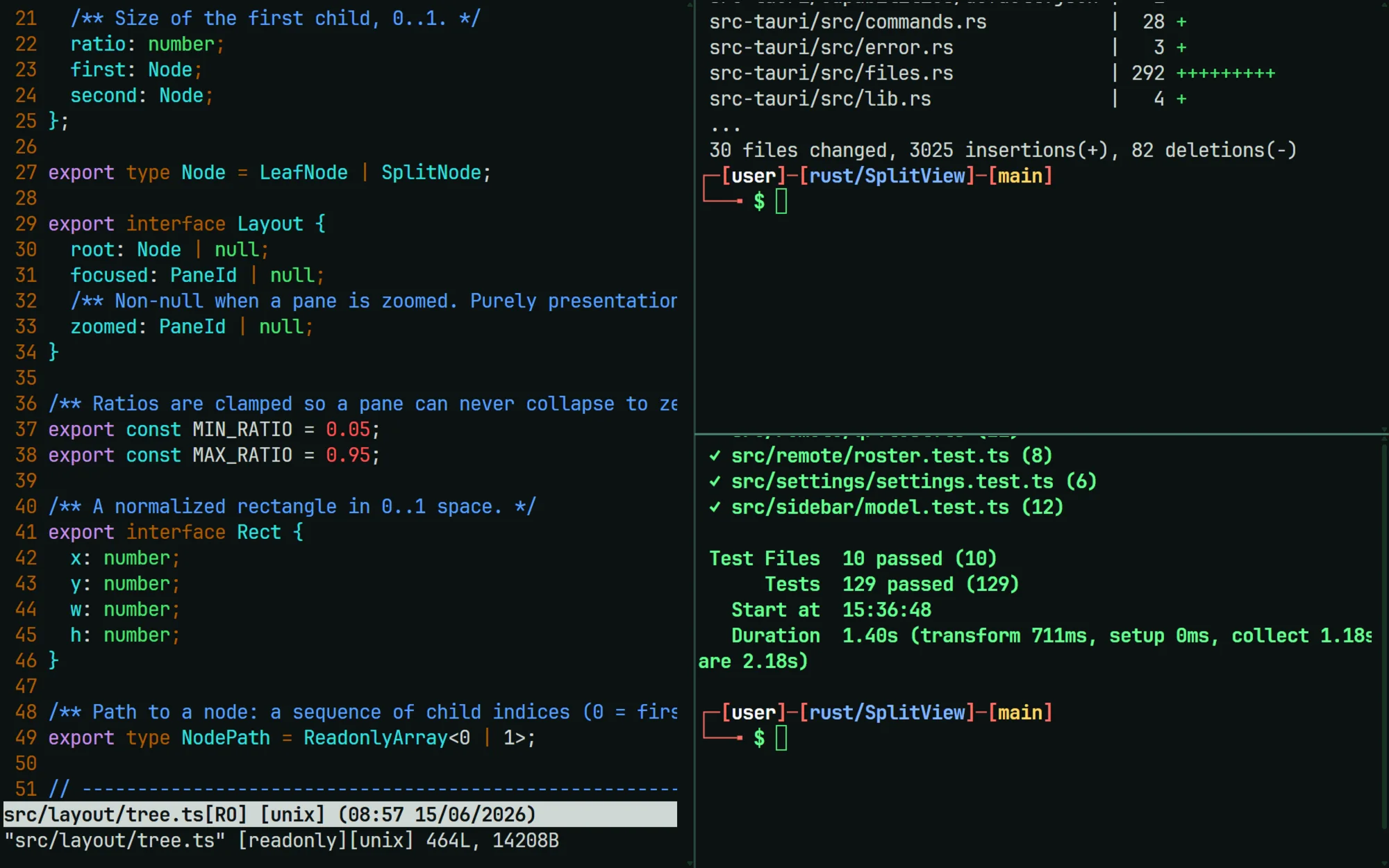
Your keys stay yours
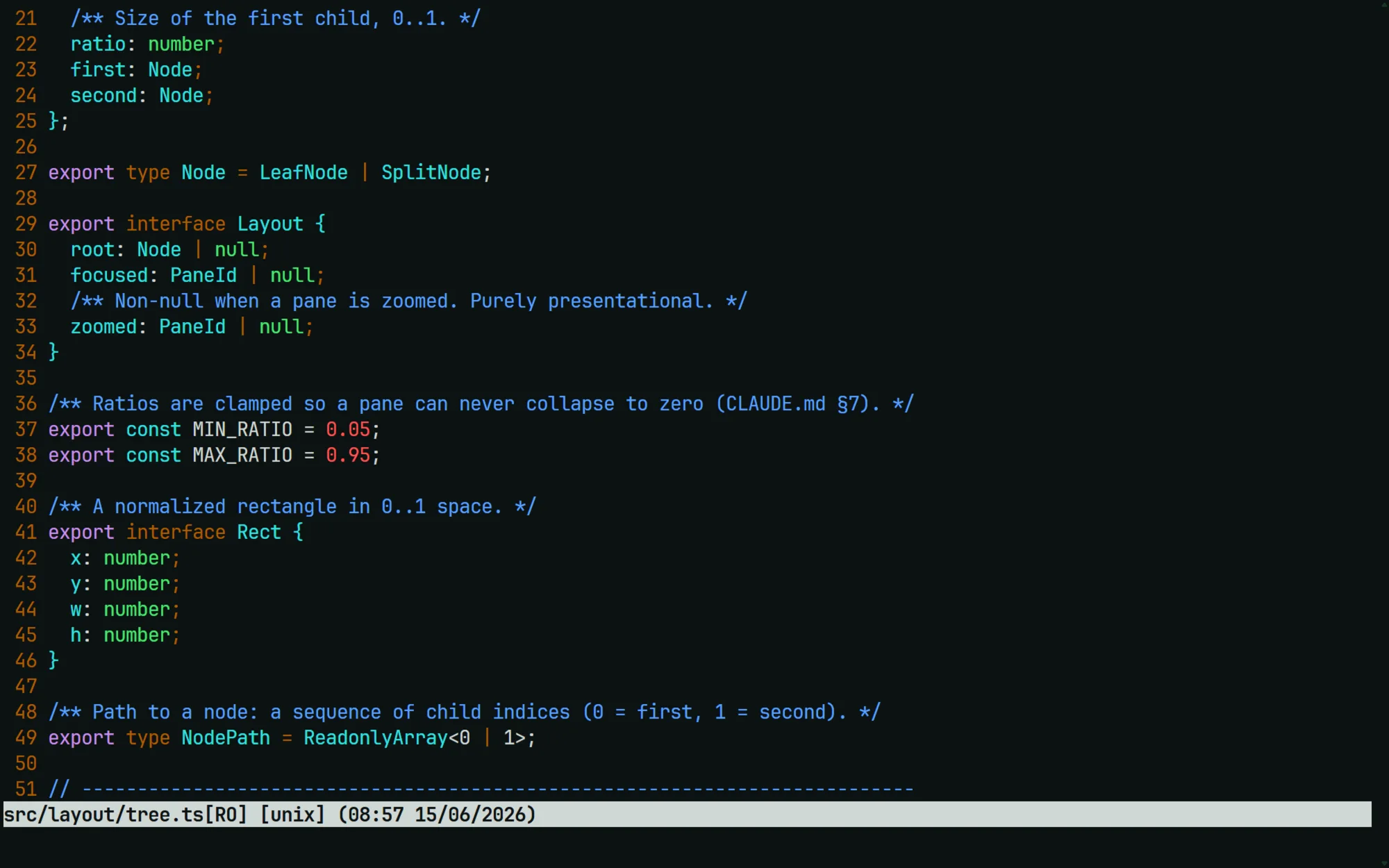
SplitView only listens after the prefix, Ctrl+A by default. Every other key goes straight to the program in the pane, so vim, emacs and tmux work as they always do.
Press the prefix twice to send it through to the shell.
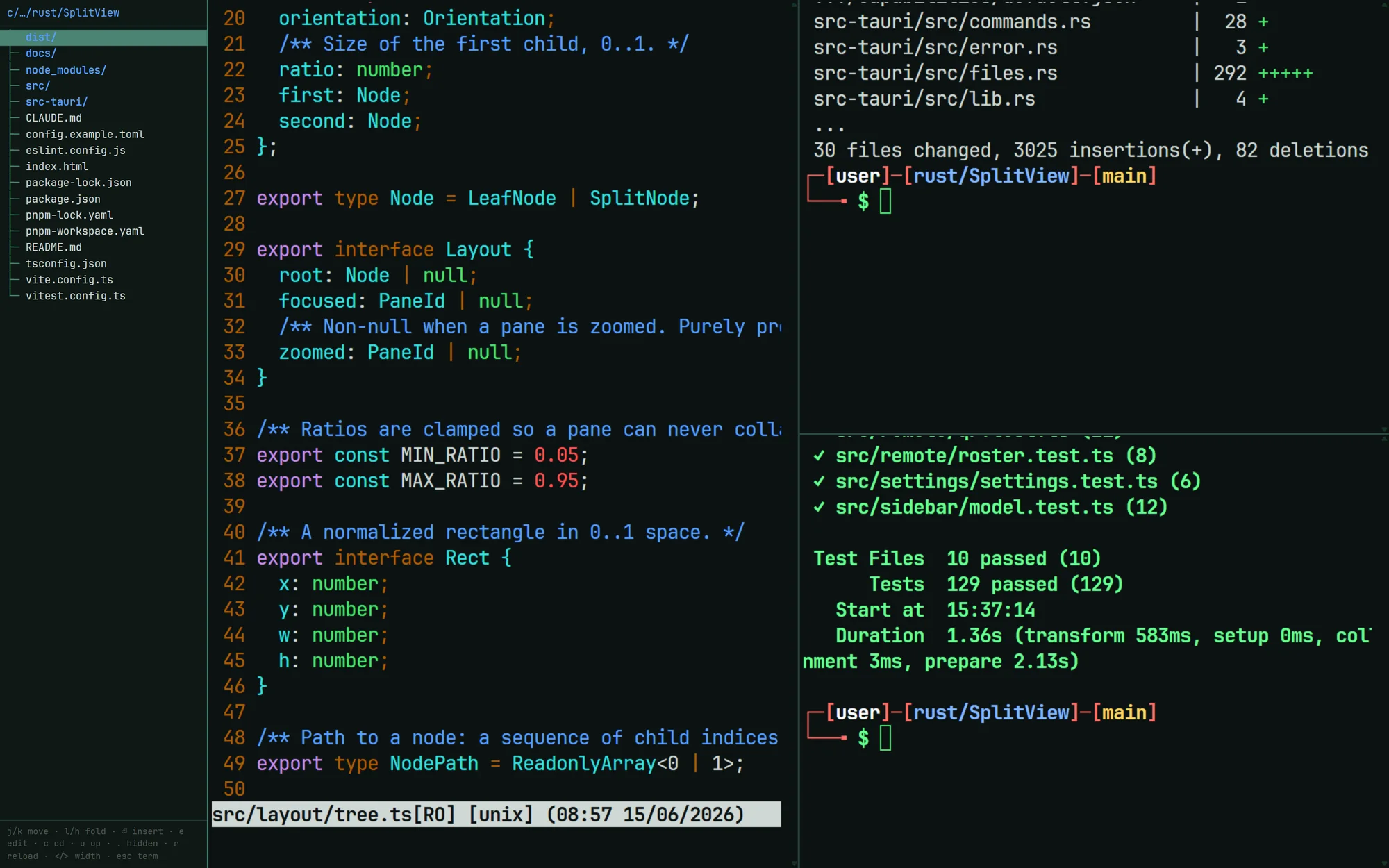
A file tree that follows your shell
Press e after the prefix and the sidebar opens on the focused pane's directory. It moves when you cd or switch panes, and updates as files are created, renamed or removed.
Press Enter on a file to type its path at the prompt.
Edit without leaving the terminal
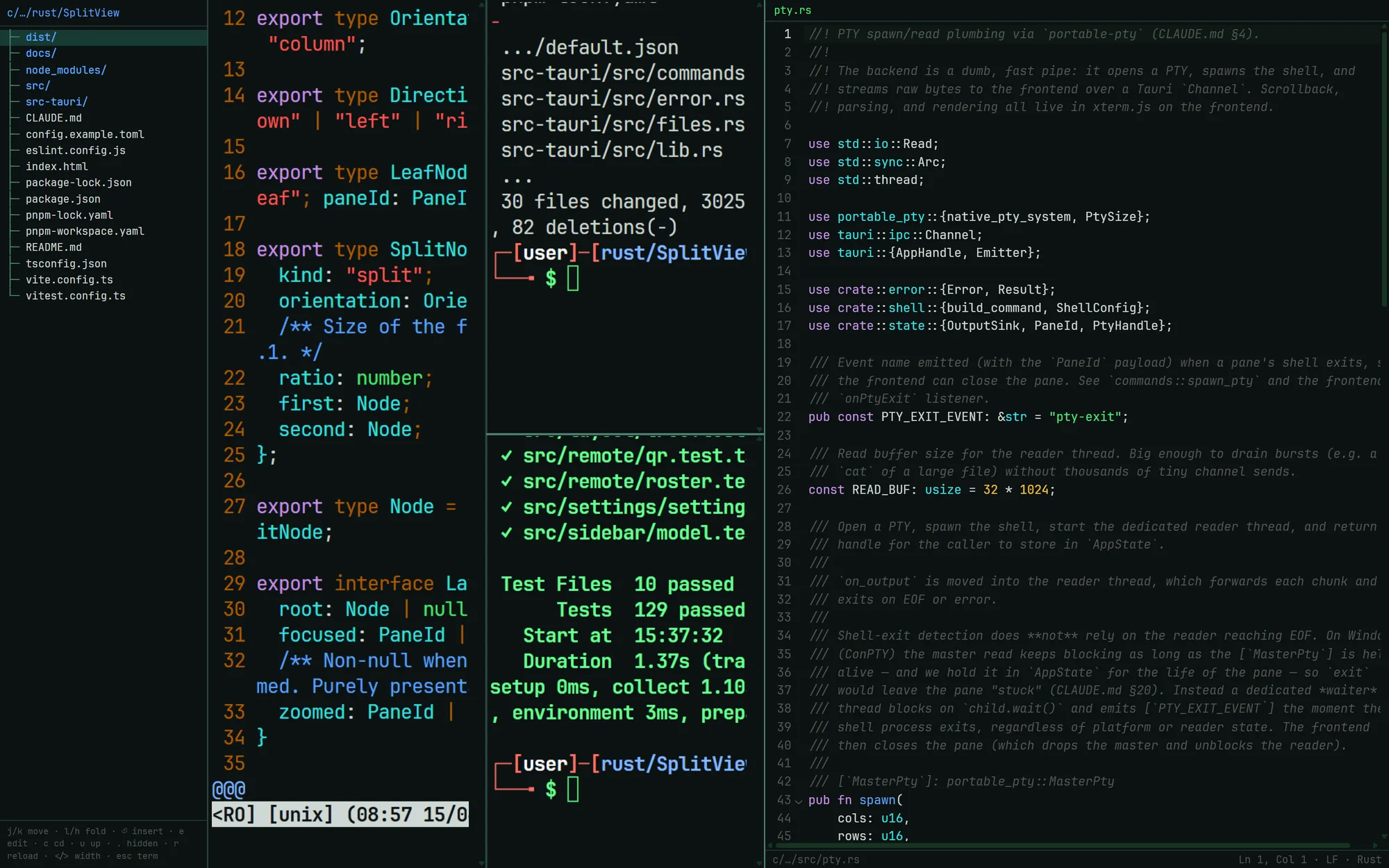
Run splitview edit file.rs or press e on a file in the sidebar. The editor docks on the right, with tabs, syntax highlighting, and find and replace.
If a command changes the file while it's open, a clean buffer follows the disk. If you have unsaved edits, SplitView warns you and asks before it overwrites anything.
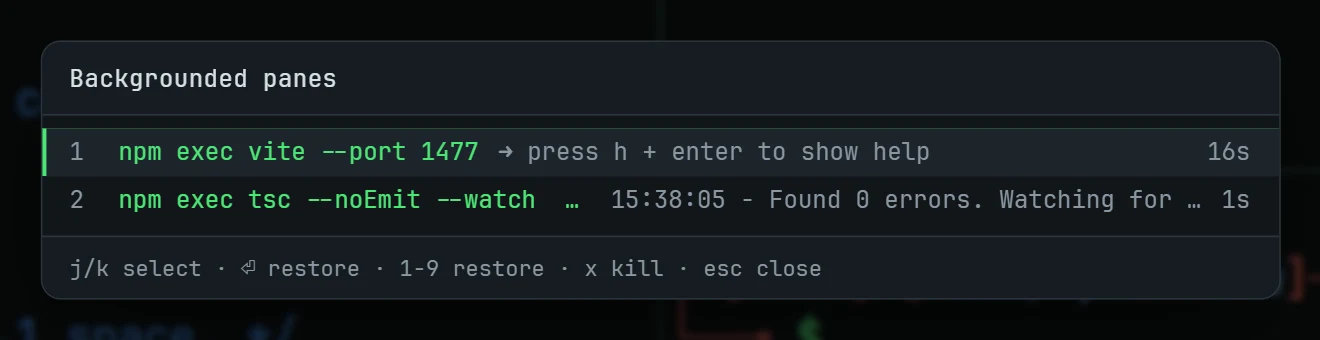
Send a dev server to the background
b hides a pane without stopping it. The process keeps running and its output keeps buffering. Shift+B lists what's running, with each pane's latest line, so you can bring one back or stop it.
Make it look like yours
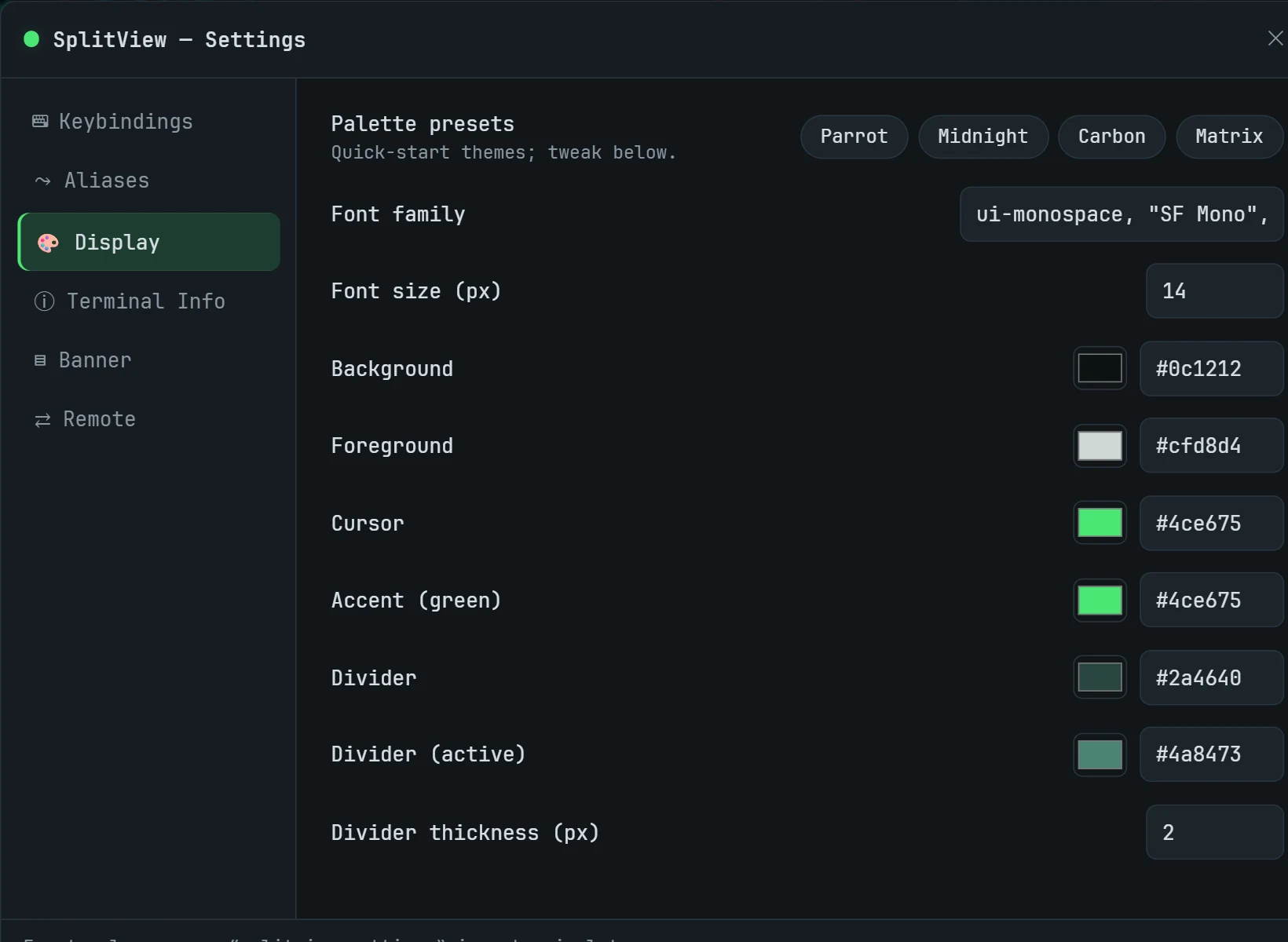
Open Settings with , to choose a palette, font and divider thickness. You can also set aliases, a startup banner, and which details appear in the prompt.
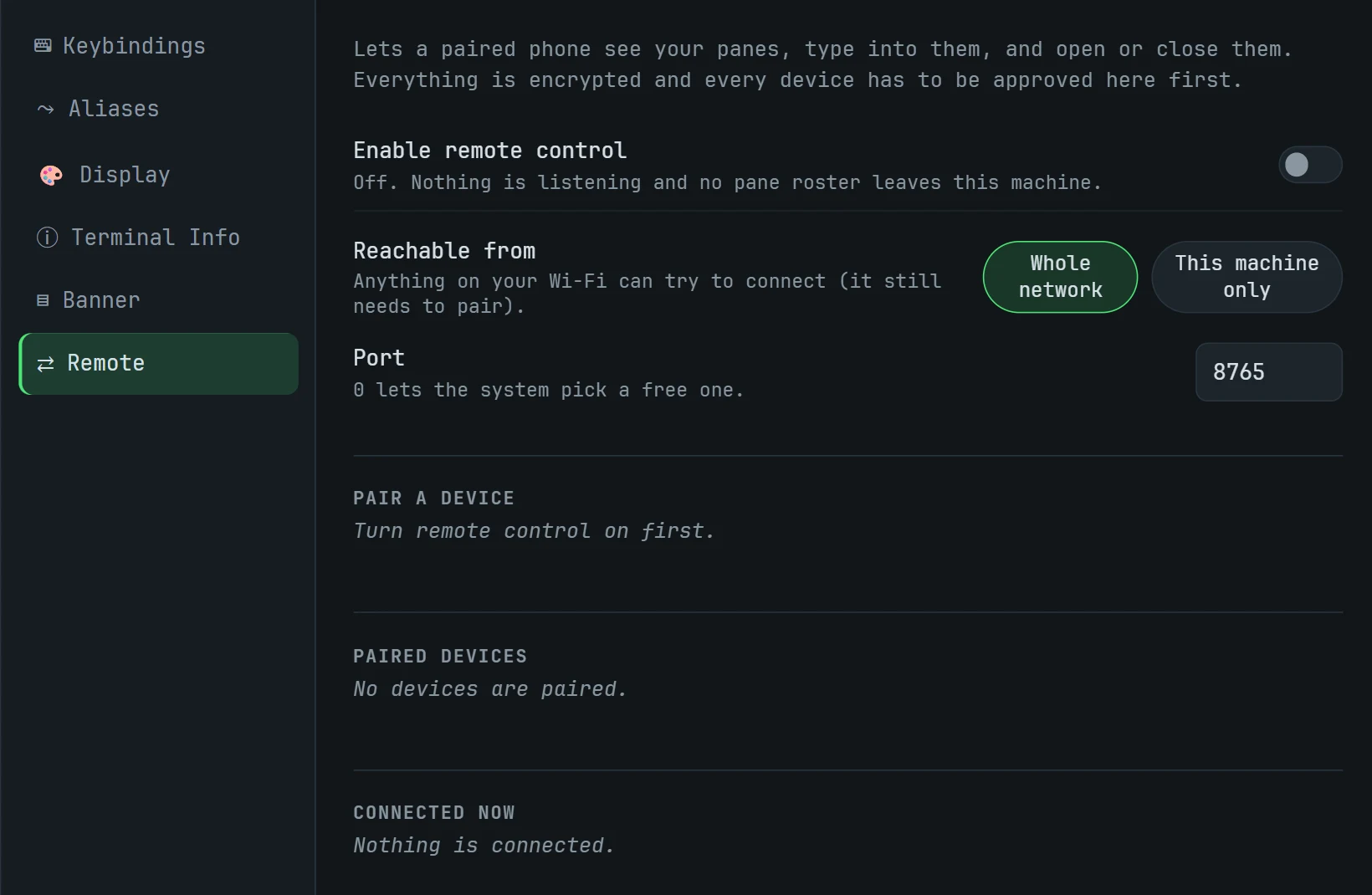
Remote control is built, and off by default
Version 0.2.0 includes the desktop side of remote control: an encrypted server that lets a paired phone watch and type into your panes. Each device needs a pairing code and your approval on the desktop.
The phone app isn't available yet, so there's nothing to pair with today. You can ignore this panel and nothing will listen on your network.
The keys
Press the prefix, Ctrl+A, then one of these. Bindings are listed in full in Settings.
- Split side by side
- v or \
- Split stacked
- s or -
- Move focus
- h j k l or arrows
- Focus next pane
- o
- Swap pane
- Shift + h j k l
- Resize pane
- Ctrl + h j k l
- Zoom pane
- z
- Close pane
- x
- Move pane to its own window
- d
- Background pane
- b
- List background panes
- Shift+B
- New window
- n
- File sidebar
- e
- Editor
- Shift+E
- Settings
- ,
Download SplitView 0.2.0
Windows x64, 3.6 MB SHA-256 6a7b2f6c2a10342a92c0f24af48c1f17b4a47a5a23ab19188ca5034d9911bfef
Windows x64, 5.2 MB SHA-256 185481a701b9d8167ed96c5f4ee436da4af65ec98284a843e83cbbcb6f24cb46
Before you install
- SplitView runs a POSIX shell, not PowerShell or cmd.exe. Install Git for Windows first if you don't have
bashon your PATH. - The installers aren't code-signed yet, so Windows SmartScreen will warn you. Check the SHA-256 above, then choose More info and Run anyway.
- macOS and Linux builds aren't available yet.